How to Read the Search Console Page Indexing Report
27 June 2025

Roberta Johnston
SEO Lead
I'm an SEO specialist with over 8 years of experience helping brands grow through strategic, data-driven search optimisation. I've worked with large e-commerce websites and niche brands alike, developing a deep understanding of ranking algorithms, generative AI, and LLMs like ChatGPT, Perplexity AI, and Gemini. My expertise spans technical SEO, ensuring sites - whether a few dozen pages or 100,000+ - are crawled and indexed effectively.
Tags
No Organic Traffic? It might be an indexing problem.
When you’re running Google Ads or Meta campaigns, you get dashboards, alerts, and automated insights telling you what’s working and what’s not.
But when it comes to Organic Search? You’re often flying blind.
There’s no neatly packaged performance report. No budget pacing reminders. And no dedicated rep walking you through next steps. Just… hope.
If you’re trying to grow traffic from Google without a clear idea of what’s actually happening behind the scenes, you’re not alone - and that’s where Google Search Console can be a game changer.
In this blog, we’re focusing on one of GSC’s most useful - but often overlooked - features: the Page Indexing Report.
What Is the Page Indexing Report?
Inside Google Search Console, under Pages > Indexing, you’ll find a report that quietly holds the answer to one of SEO’s most frustrating questions:
“Why isn’t this page showing up in search?”
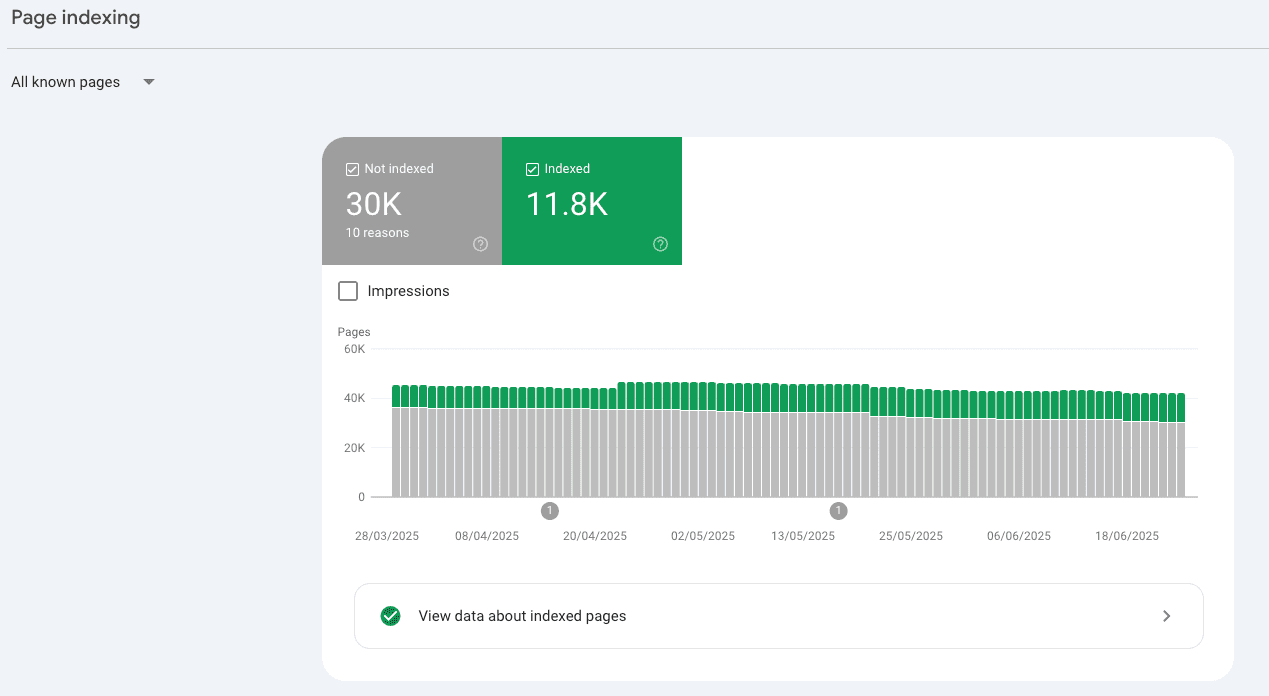
The Page Indexing Report shows you exactly which URLs on your site Google has attempted to crawl, index - or ignore entirely.
It also breaks down why certain pages weren’t indexed, giving you insights you won’t find in Analytics or your CMS.
It’s not just a “technical SEO” tool. It’s a practical prioritisation tool.
• Want to know if your product pages are being indexed?
• Want to find out if Google skipped key blog content?
• Want to clean up duplicate or low-value URLs that are clogging your crawl budget?
This report tells you all of that - and when paired with tools like the URL Inspection Tool, you can dig even deeper into how Google sees a specific page:
• Whether it was crawled
• Which canonical URL it selected
• If it passed structured data checks
• And whether you’re eligible for rich results
What Do We Mean by “Indexing”?
When Google indexes a page, it means it’s been added to Google’s database and is eligible to appear in search results.
But... just because a page is published (and even crawled) doesn’t mean it’s been indexed. If it’s not indexed, it won’t show up in search - at all.
The Key Non-Indexed Statuses Explained
Google doesn’t index every URL it finds. That’s not always a problem - but when important pages aren’t showing up in search, it helps to know why.
Here’s a breakdown of the most common non-indexed reasons you’ll see in GSC - and what to do about them.
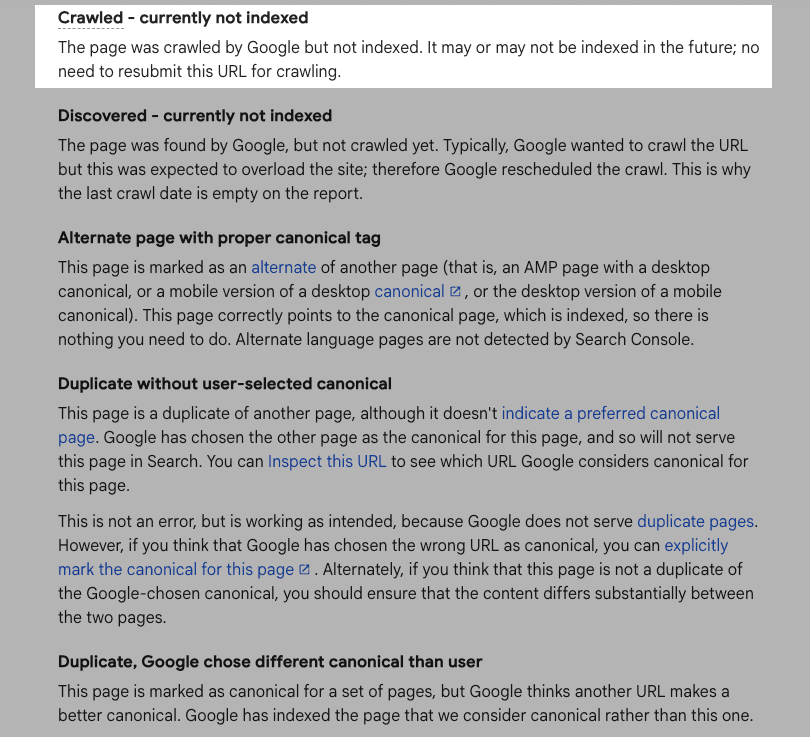
Crawled – currently not indexed
What it means:
Google has crawled the page, but chosen not to index it, at least for now. The URL is known and accessible, but not included in search results.
Common causes:
• Thin content or templated pages with little unique value
• Duplicate or near-duplicate content elsewhere on your site
• Pages that don’t serve a clear search intent (e.g. filtered product views, low-traffic tags)
Example for ecommerce:
You’ve launched 300 new product pages, but only 200 are indexed. The rest show as “Crawled – currently not indexed” because many contain boilerplate descriptions or no supporting content (like reviews or FAQs).
What to do:
• Improve content quality - add helpful detail, unique selling points, or media (like images or videos)
• Strengthen internal links to the page from higher-authority areas (e.g. homepage, featured collections)
• Check with the URL Inspection Tool for crawl history, last attempt, and if it passed rendering
• Don’t rely on "Request Indexing" alone - fix first, then request if needed
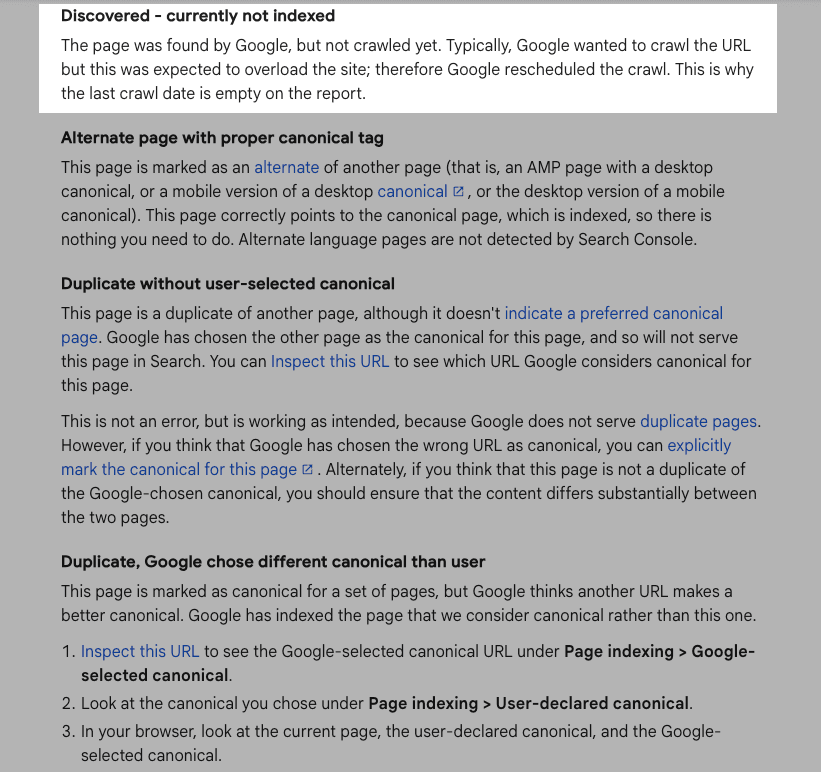
Discovered – currently not indexed
What it means:
Google is aware of the URL (it’s been “discovered”) but hasn’t crawled it yet.
Common causes:
• Crawl budget limitations on large or frequently updated sites
• Low-priority signals: no internal links, not in sitemap, or buried in filters
• Server issues slowing down crawl activity
Example for ecommerce:
You’ve launched a seasonal sale page, added it to the nav, but forgot to link to it from your homepage or sitemap. Google sees the URL but doesn’t crawl it fast enough to index it in time for the sale.
What to do:
• Link to the page from high-traffic sections of your site
• Ensure it’s included in your XML sitemap
• Check your Crawl Stats Report (under Settings) for crawl health
• Use Live Test in the URL Inspection Tool to ensure it’s accessible and worth crawling
Not found (404)
What it means:
404 is an HTTPs response code. Google tried to crawl the page but got a 404 error - meaning it doesn’t exist.
Common causes:
• The URL was deleted or mistyped
• A page was unpublished but still internally linked
• Incorrect links in your sitemap or menu
Example for ecommerce:
A discontinued product is removed from your store, but your sitemap and category pages still link to it - resulting in multiple 404s over time.
What to do:
• Redirect old URLs to relevant alternatives (e.g. category or similar product pages)
• Update or remove outdated internal links
• Keep your sitemap clean - don’t submit URLs you’ve removed from the site
Soft 404
What it means:
The page technically loads, but Google thinks it’s empty or not useful.
Why it happens:
Thin content, placeholder text, or unhelpful messaging like “no products found.”
What to do:
• Improve the content - make sure the page offers value.
• Use the live test in the URL Inspection Tool to see what Google sees.
Blocked due to other 4xx issue
What it means:
The page triggered a different client-side error, like 403 (forbidden) or 410 (gone).
What to do:
• Check server permissions or security plugins.
• Fix any firewall or access issues.
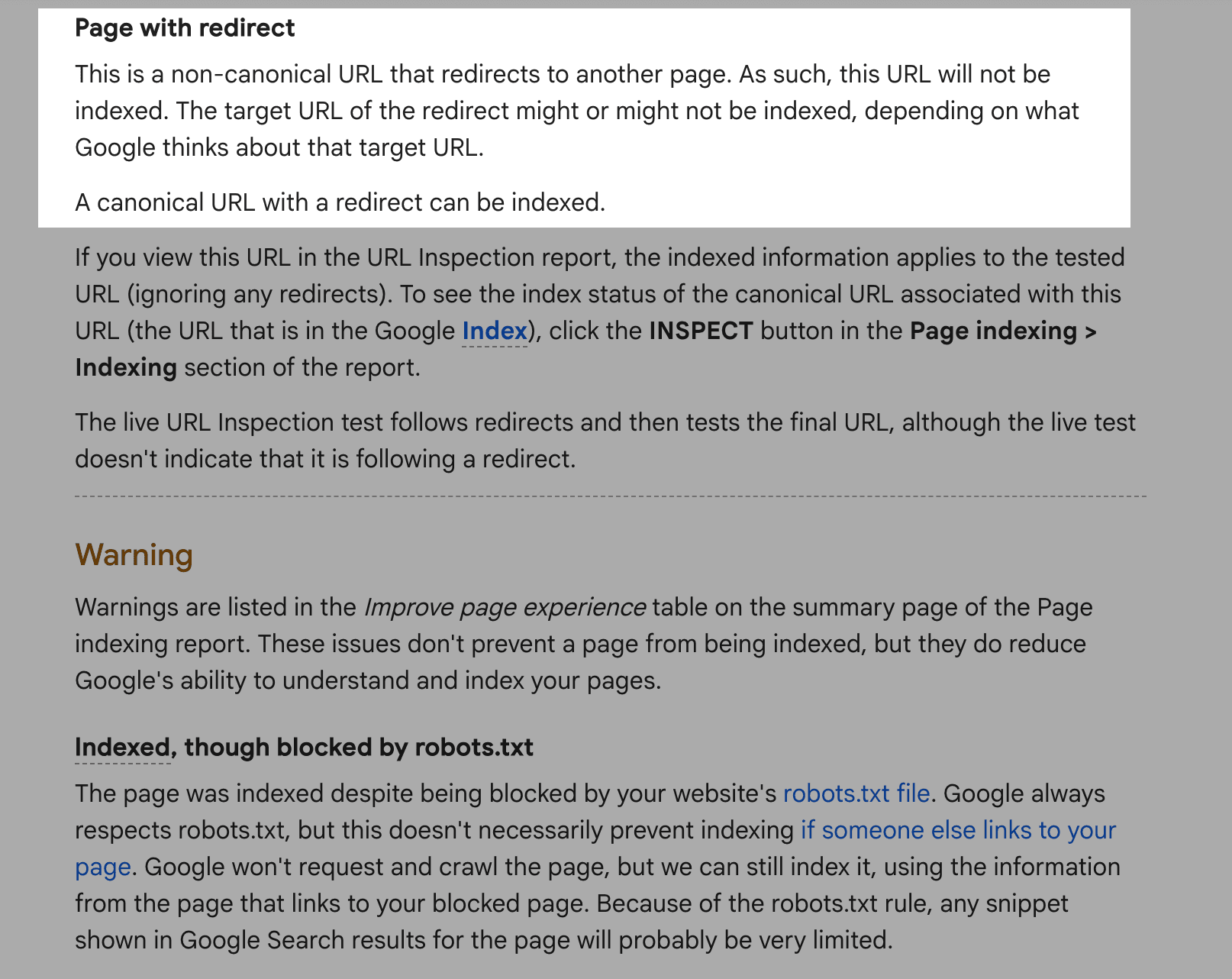
Page with redirect
What it means:
Google encountered a redirect when attempting to crawl the URL.
Common causes:
• You’ve redirected an old product page to a new version
• Legacy redirects after a platform migration
• Redirect chains or loops that slow Google down
Example for ecommerce:
You rebranded and redirected all /shop/product-name URLs to /products/product-name, but some of those redirects pass through a second intermediary, causing unnecessary delay and lower crawl efficiency.
What to do:
• Simplify redirect paths - 1-to-1 redirection is best
• Avoid chaining multiple redirects
• Test using the URL Inspection Tool to confirm final destination is correct and indexable
Blocked by robots.txt
What it means:
Google tried to crawl the page but was blocked by your site’s robots.txt file. That means the crawler was told “don’t go here,” so it couldn’t fetch the content or evaluate it for indexing.
Common causes:
• Intentionally blocking sections (e.g. internal search, cart pages, admin areas)
• Accidentally blocking important directories (like /products/ or /blog/)
• Copying over staging site settings to live environment without updating robots rules
Example for ecommerce:
Your developer added Disallow: /product/ to the robots.txt during development, and it was never removed, so Google can’t index any product pages, even though they’re linked and in the sitemap.
What to do:
• Review your robots.txt file directly (found at yourdomain.com/robots.txt)
• Unblock any important pages or folders that should be crawlable
• Use the URL Inspection Tool to confirm whether a specific page is being blocked
• Remember: robots.txt blocks crawling - not indexing - so blocked pages may still appear in search without any content, which isn’t ideal
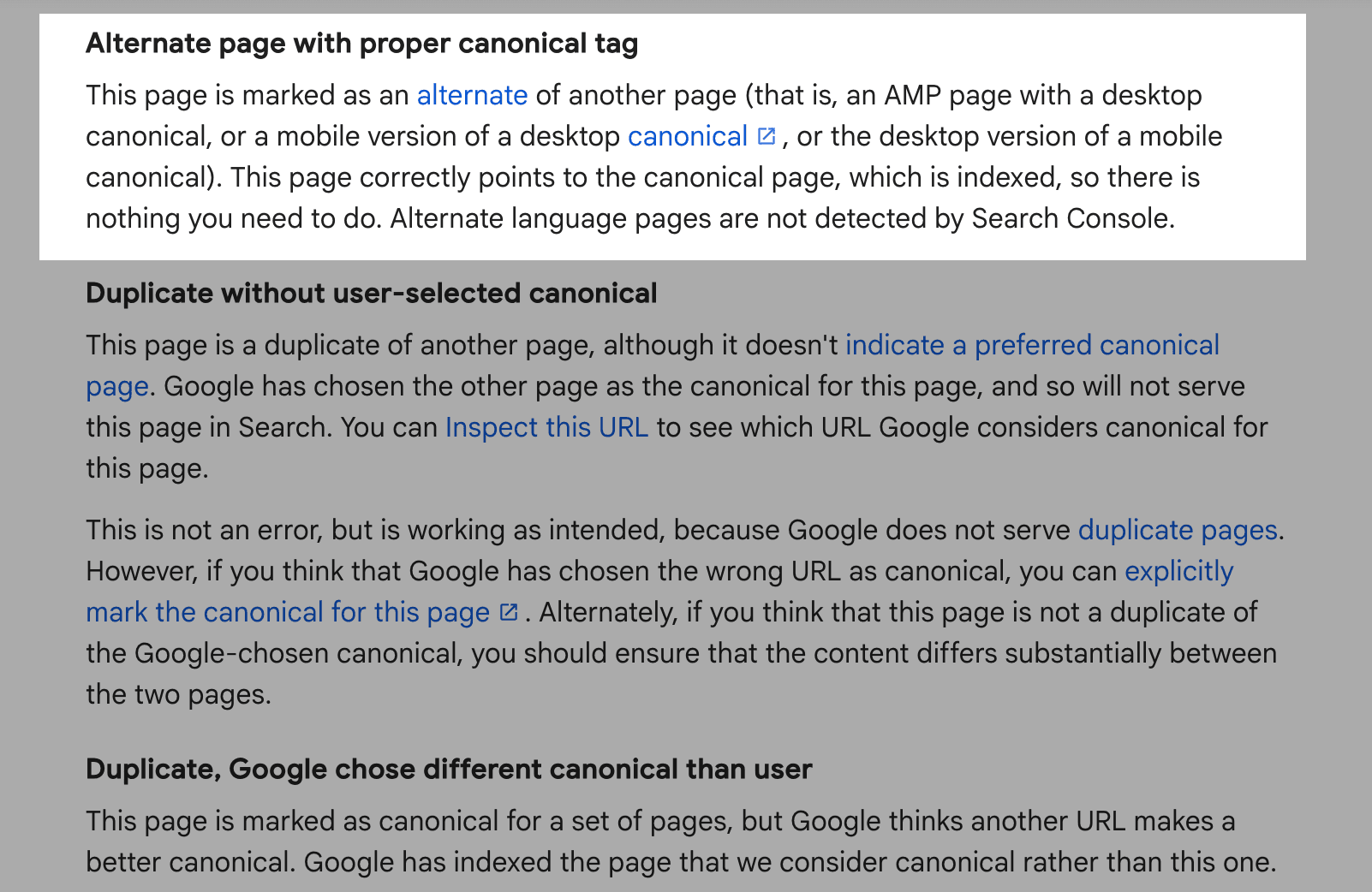
Alternative page with proper canonical tag
What it means:
Google found a page that’s marked as a duplicate of another, and it’s respecting your canonical tag by indexing the version you recommended instead.
Common causes:
• Product variants (e.g. different colours or sizes with similar descriptions)
• Filtered or sorted category pages
• URL parameters (like ?utm_source=...) creating duplicate paths
Example for ecommerce:
You have /product/shoes-blue and /product/shoes-red but both have nearly identical content. You set /product/shoes as the canonical for all variants, and Google honours it by indexing only the main version.
What to do:
• No action needed - this is normal and often correct
• Just verify that your preferred (canonical) URL is being indexed
• Use the URL Inspection Tool to confirm which version is indexed and what canonical Google selected
• If the canonical you specified isn’t indexed, double-check internal linking and content differentiation
Duplicate, Google chose different canonical than user
What it means:
You suggested a canonical URL but Google disagreed and picked a different one to index.
Common causes:
• Conflicting signals (e.g. inconsistent use of canonicals vs. internal links)
• Similar content across versions but stronger engagement signals on a different URL
• Google assessing the “user-selected” canonical as less relevant or useful
Example for ecommerce:
You want Google to index /collection/boots as the primary page, but your internal links and user engagement all point to /collection/boots-winter. Google indexes the latter instead and ignores your canonical preference.
What to do:
• Check both pages in the URL Inspection Tool to see which one was chosen and why
• Audit your internal linking - make sure you’re pointing to the canonical version consistently
• Reassess whether your canonical choice really is the best representative version
• Add more distinctive content or value to the page you want indexed
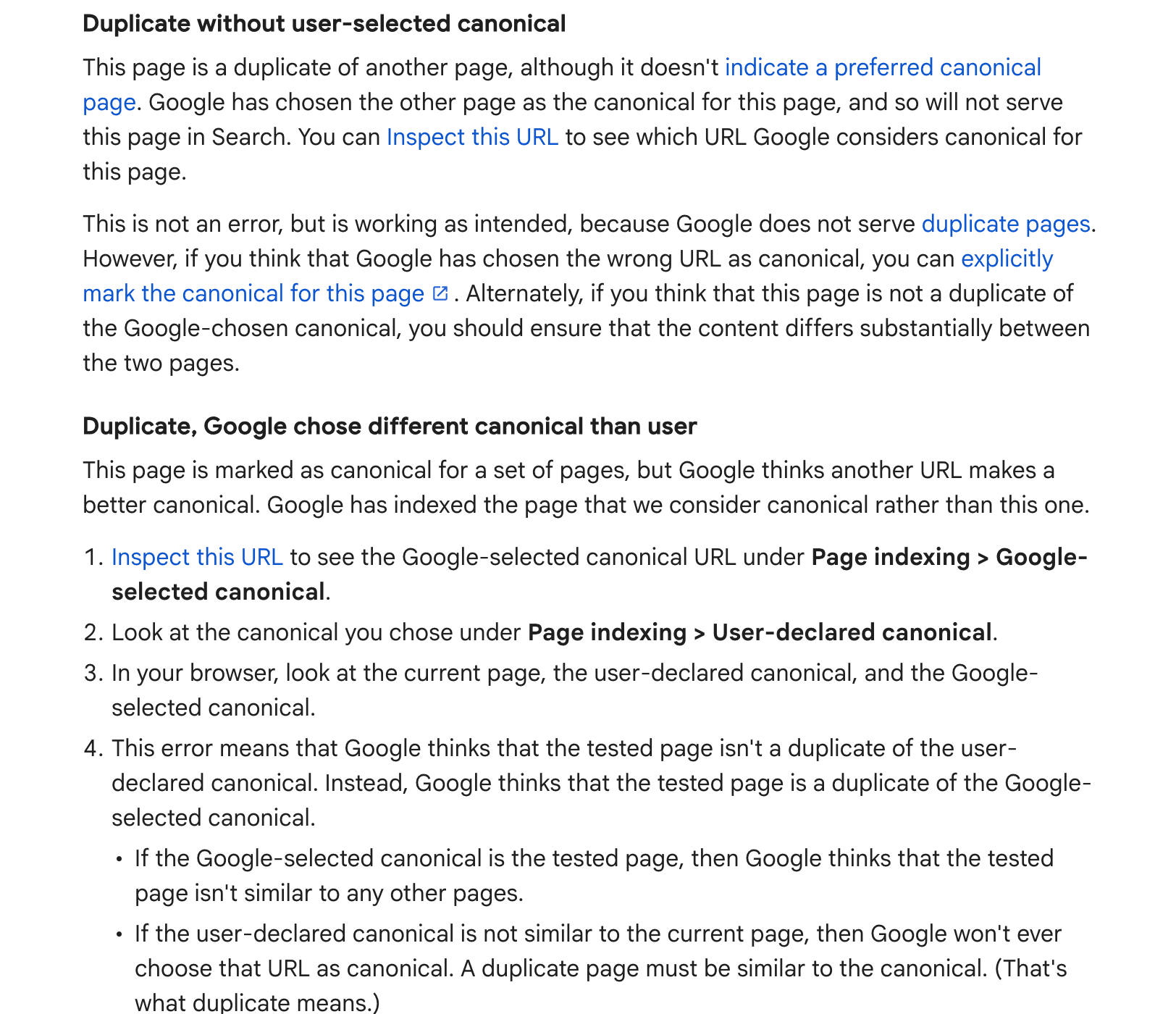
Duplicate without user-selected canonical
What it means:
Google found similar or identical pages but you haven’t provided any canonical tag, so it chose what it thinks is the best one to index.
Common causes:
• URL parameters generating multiple versions of the same page (e.g. ?ref=, ?sort=, etc.)
• Pagination or filter pages with minimal variation in content
• Lack of canonical strategy across product or collection pages
Example for ecommerce:
Your site lets users filter products by category and price, creating dozens of URLs like /sale/shoes?price=low - but none of them specify a canonical. Google sees them as duplicates and picks one at random.
What to do:
• Add canonical tags to all duplicate or parameterised URLs, pointing to the preferred version
• Review parameter handling in GSC under “URL Parameters” if applicable
• Keep filtered pages out of your sitemap unless they serve a unique SEO purpose
• Use the URL Inspection Tool to verify how Google is interpreting each version
Improve Page Appearance & Other Reports to Explore
Once you’ve tackled the core indexing issues, Google Search Console offers a handful of additional reports that help you refine how your pages show up in search - beyond just whether they’re indexed.
These don’t directly impact indexing status, but they’re hugely valuable for appearance, performance, and eligibility for enhanced search results.
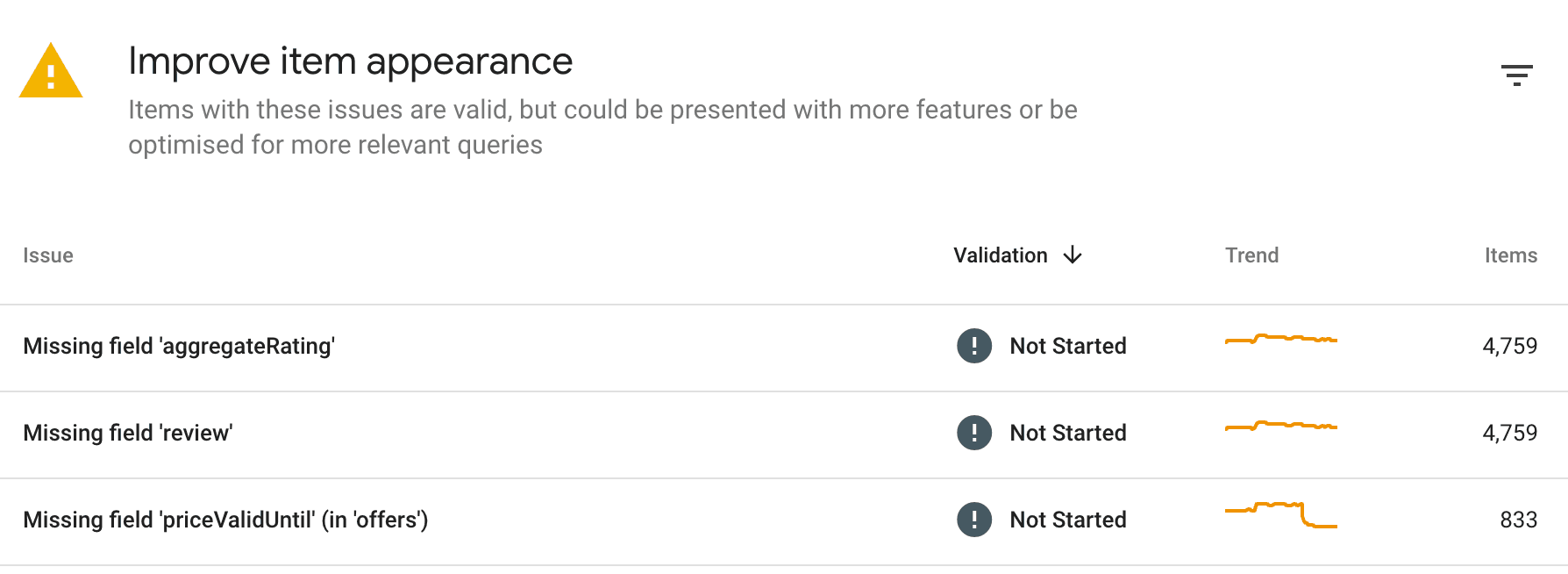
Improve Page Appearance
This relatively new section in GSC pulls together insights about how your pages are visually represented in Google Search.
For ecommerce, it can influence:
• Whether your brand or sitelinks show up cleanly
• How structured data like review stars, product availability, or prices display
• Whether your mobile layout helps or hinders performance
Why it matters: You may have all the right content, but if your listings look generic or broken, click-through rates will suffer - even for indexed pages.
What to do:
• Review the Appearance and Enhancements section in GSC
• Make sure structured data is implemented correctly (especially for product, review, and breadcrumb schemas)
• Use the Rich Results Test to preview eligible enhancements
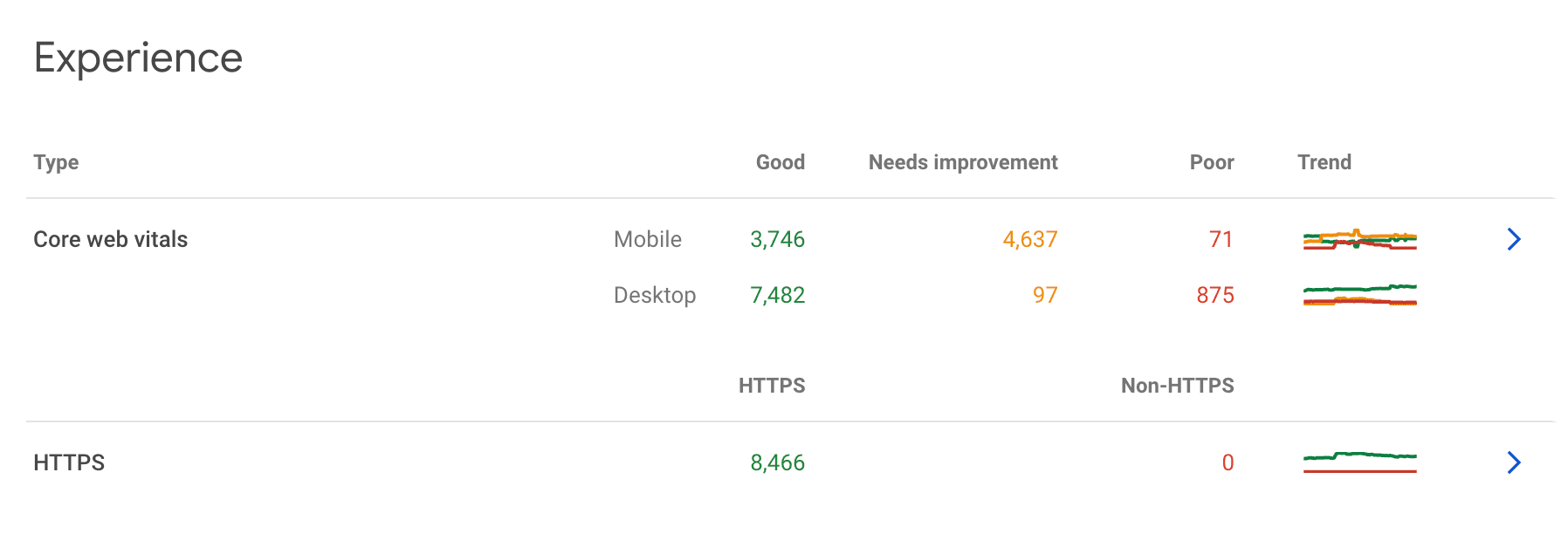
Experience Reports
Google’s Experience section includes:
• Core Web Vitals: Measures loading performance, visual stability, and interactivity
• Mobile Usability: Checks if your content fits, loads, and functions well on mobile devices
• HTTPS Report: Confirms all pages are securely served over HTTPS
Why it matters:
Page experience isn’t a direct ranking factor in isolation, but poor scores can impact user engagement, bounce rates, and eligibility for rich features.
What to do:
• Use the Core Web Vitals report to identify lagging templates or slow-loading product pages
• Fix mobile-specific issues like touch targets or text clipping
• Ensure every indexed page is served securely (HTTPS)
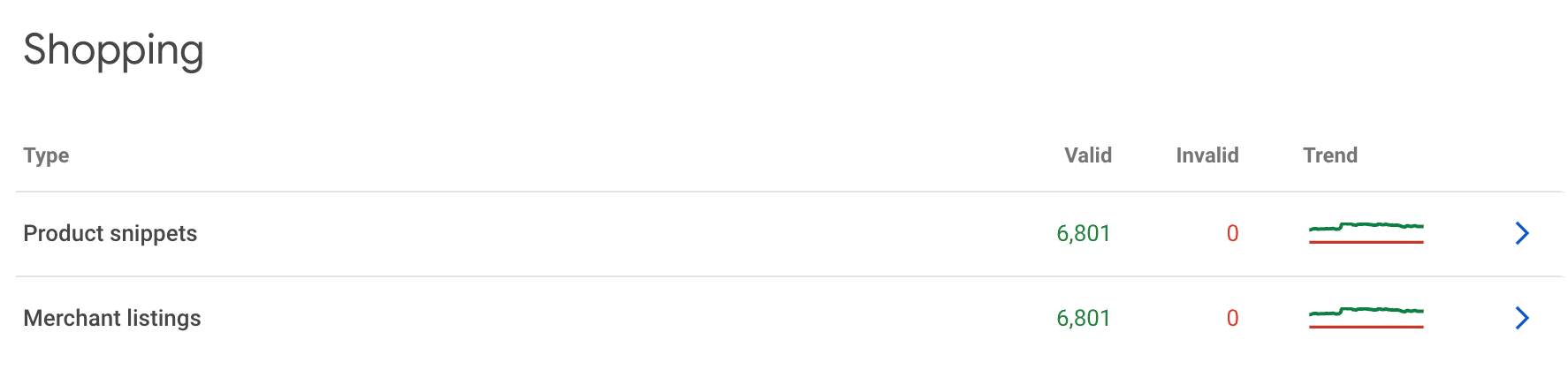
Shopping Reports (if applicable)
If you’ve enabled structured data for product listings or feed-based integrations (like Google Merchant Center Next), GSC may display a Shopping section.
What to do:
• Fix warnings related to missing product fields (e.g. price, availability, or review)
• Validate product markup using the URL Inspection Tool
• Confirm eligibility for Product Rich Results or Free Listings
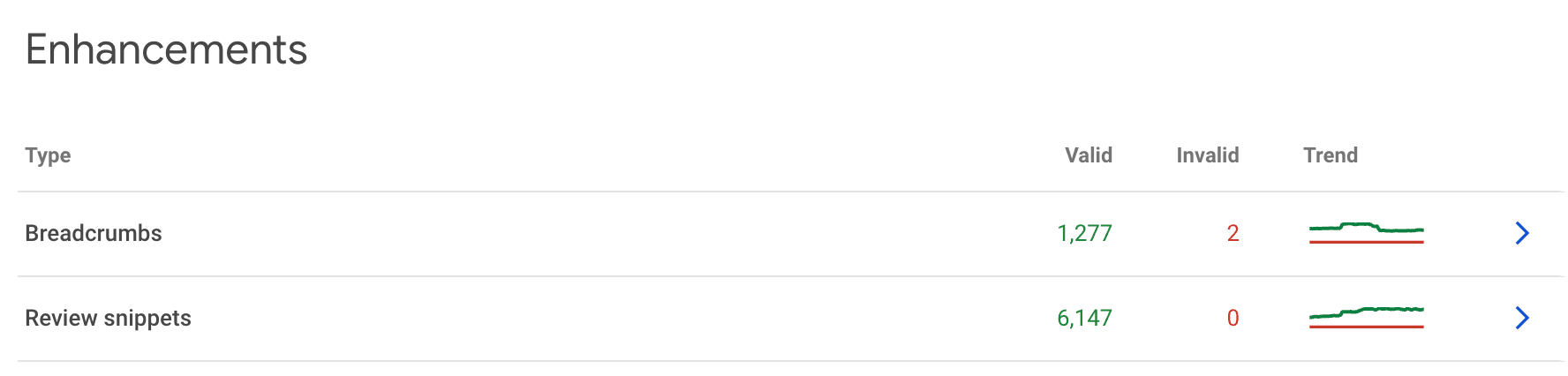
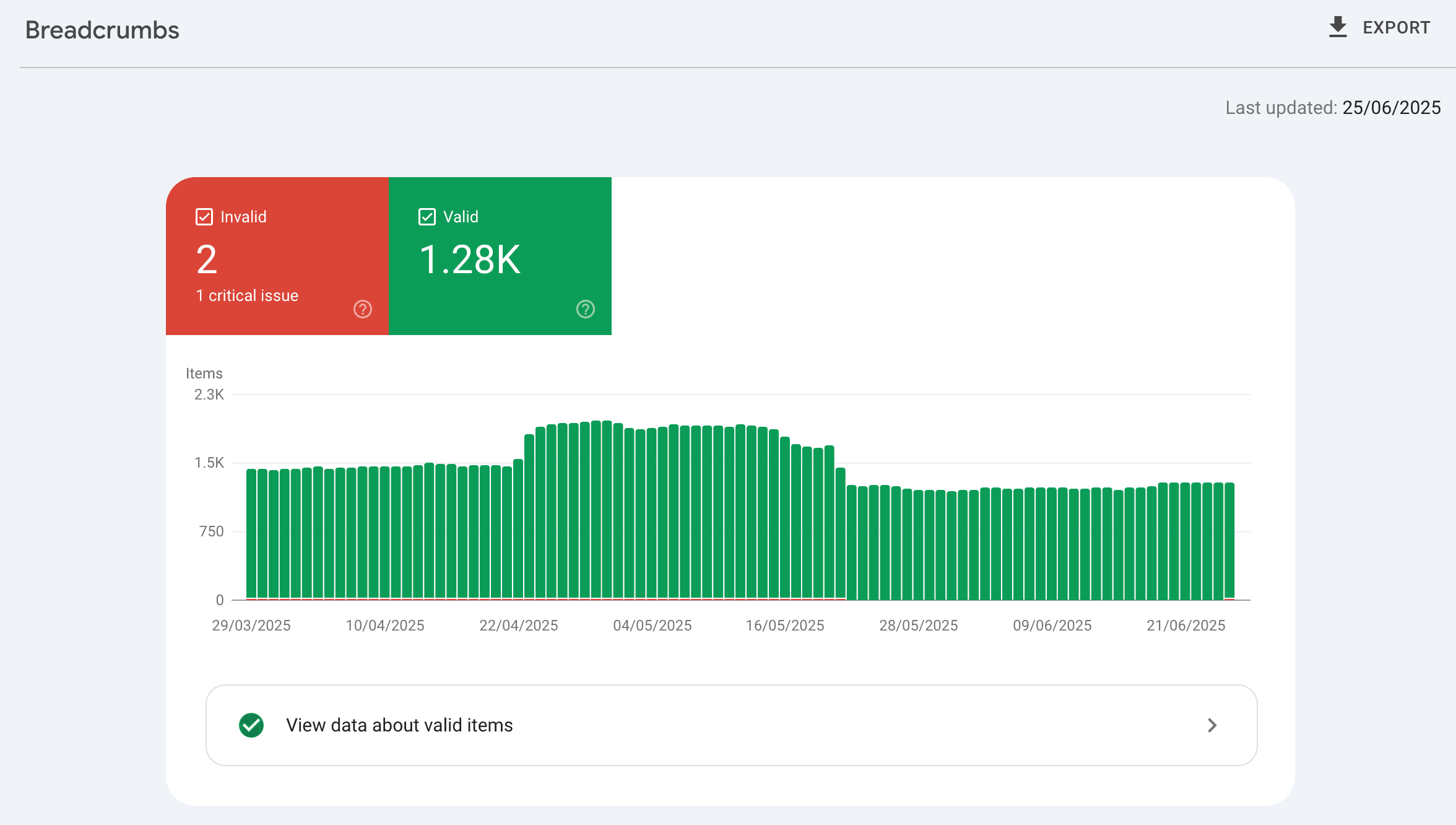
Enhancements
This section flags structured data types found across your site, such as:
• FAQs
• Breadcrumbs
• Product schema
• Sitelinks search box
Each enhancement type will show:
• How many pages are valid
• How many have errors or warnings
• What’s needed to fix them
Why it matters:
Properly implemented schema helps your content stand out in search - and helps Google better understand the structure of your site.
What to do:
• Prioritise enhancements that support ecommerce (Product, FAQ, Review)
• Use structured data testing tools to debug implementation issues
• Keep FAQ markup up to date, especially around shipping, returns, or loyalty programs
Crawl Stats Report
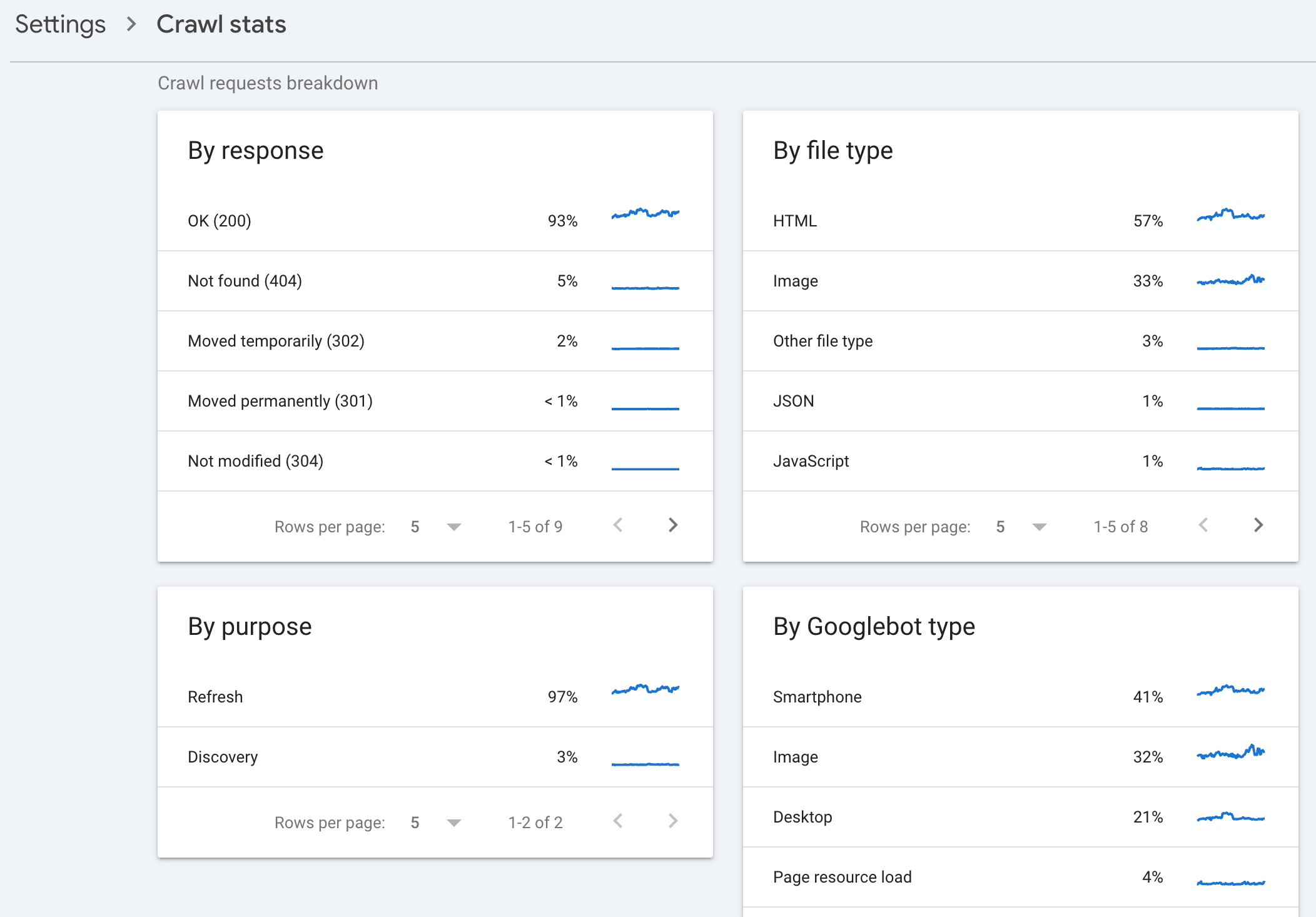
Found under Settings > Crawl Stats, this is where you get a behind-the-scenes look at how Googlebot is moving through your site.
Breakdowns include:
• By response type (e.g. 200, 301, 404)
• By file type (HTML, JavaScript, CSS, images)
• By purpose (e.g. refresh vs. discovery)
• By Googlebot type (desktop vs. mobile crawlers)
Why it matters:
It helps you:
• Spot crawl bottlenecks or errors
• Identify large areas of the site Google isn’t visiting
• Understand how JavaScript-heavy pages are being treated
What to do:
• Monitor for spikes in 5xx errors or crawl delays
• Keep image and script sizes optimised to reduce crawl strain
• If crawl volume is unusually low, improve internal linking and sitemap freshness
Why This Matters (Even If You’re Not an SEO Pro)
It’s easy to get overwhelmed by crawl statuses, canonical tags, and schema markup. But understanding what Google is doing with your pages isn’t about being technical, it’s about being strategic.
If your product pages aren’t indexed, they won’t rank.
If your FAQs don’t show up in search, they’re not helping.
And if Google’s bots can’t get through your site, your content may as well not exist.
This isn’t just SEO theory - it’s about visibility, conversion, and revenue.
When you know how to read these reports, you can:
• Prioritise the right fixes instead of guessing
• Spot problems before they cost you traffic
• Build a cleaner, faster, more indexable site over time
• And turn Organic into a true performance channel
Google Search Console doesn’t give you answers. But it does give you clues. And if you know how to read them, it becomes one of the most valuable (and free) tools in your ecommerce stack.
Truthfully, You Don’t Need to Master SEO...
You just need the right support!
Most ecommerce managers and business owners don’t have time to reverse-engineer crawl stats or decode every indexing error - and they shouldn’t have to.
But we can - and do.
At Blackpepper, we don’t just fix technical SEO issues - we connect the dots between your product catalogue, your content, and the real-world behaviour of your search audience.
We help ecommerce brands turn underperforming sites into high-converting, highly discoverable platforms that play by Google’s rules without compromising on UX or speed.
So if Organic feels like the channel that always gets pushed to “later,” let’s talk.